Stream Studio > Introduction
Auctions Live Guide
- Auctions Live Tutorials
-
Quick Reference
- Quick Reference > Selling Agent Profile and User Role
-
Quick Reference > Managing Your Listings
- Keep Bid Records Up to Date
- CRM / REAXML Listing Data Update Rules
- Share Listings with External Corporates or Auction Houses
- Archive Unused Properties with Confidence
- Manually Adding a Listing
- Duplicate Auction Listings in the PC Console
- Importing Auction Properties from your CRM or Real Estate Portal
- Edit Property Details in Auctions Live
- Manage Property Photos in Auctions Live
- Adding a Vendor to Your Listing
- Changing a Selling Agent on a Listing
- Uploading a Property / Seller Disclosure Statement to a Listing
- Manage Registration Across Multiple Lots
- Check Bidding Status at a Glance
- Review Lot Details Without Opening Listings
- Add Manual Bids with Confidence
- Track and Revert Bid Record Changes
- Maintain Bidding History Without Changing the Sale
- Keep Your Bid History Accurate
- Review Auction Bidding at a Glance
- Quick Reference > Broadcasting / Live Streaming
- Quick Reference > Associate Agents
- Quick Reference > Fees & Charges
- Quick Reference > Publishing Reserve Prices Prior to Auction
-
Quick Reference > Phone Bidding via an Agency Representative
- Change a Phone Bidder Representative
- Approving a Phone Bidder
- How to Enable Phone Bidding via an Agency Representative in System Settings
- How to Enable Phone Bidding via an Agency Representative for an Auction Listing
- How to Assign a Representative to a Phone Bidder
- How Agency Representatives can View and Access Assigned Phone Bidders
- Printing a Phone Bidder Run Sheet
-
System Setting
-
System Settings > General
- Browser Extensions and Online Bidding
- General System Settings Guide
- Bidder Registration Settings Guide
- Authority to Bid Settings
- Updating Auction Terms and Conditions
- Hosted Widget Settings Guide
- Broadcaster App Visual Settings
- Interested Party Form Setup
- Update Default Deposit Percentage
- Preview Your ePaddle in Auctions Live
- Custom Text Engine Guide
- Vendor Reserve Letter Feature
- Enabling the Associate Agent Feature
-
System Settings > Integrations
- Adding Auctions Live to Your Website
- Real Time Agent Integration Guide
-
Data Source API / CRM Properties Import
- Connecting Your Custom CRM to RE Software
- Introduction
- Obtaining LockedOn API Credentials
- Obtaining Eagle Software API Credentials
- Obtaining ReNet API Credentials
- Requesting Move CRM Credentials
- Obtaining Propertybase REAXML Credentials
- Obtaining Property Suite API Credentials
- Obtaining Centernet REAXML Credentials
- Obtaining Vault API Credentials
- Obtaining Domain Agency ID
- Obtaining REX API Credentials
- Obtaining Zenu API Credentials
- Obtaining Reapit | Agentbox API Credentials
- YouTube Live
- Google Calendar / Meet
- Zoom
- Facebook Live
- System Settings > Multi-Lot Auctions
-
System Settings > General
-
Bidder Registration
- Introduction
- Enable Electronic Bidder Registration
- Pre-register Bidders via PC Console
- Manually Adding a Bidder via the PC Console
- Editing Pre-Registered Bidder Details via the PC Console
- Editing Approved Bidder Details via the PC Console
- Pre-Registered Bidders via the Mobile Console App
- Managing Bidders via the Mobile Console App
- Manually Adding Bidders via the Mobile Console App
- Approve Pre-Registered Bidders via PC Console
- Download a Completed Bidder Registration Form
- Add Bidder Using Paper Form Upload via PC Console
- Add Bidder Using Paper Form Upload via Mobile Console
- Sending Mass Notifications to Registered Bidders
- Sending Mass Notifications to All Registered Bidders
- Sending Mass Notifications to Pending Bidders
- Sending Mass Notifications to Approved Bidders
- Sending Mass Notifications to Declined Bidders
- Configure Additional Bidder Registration Notifications
- Configure Additional Bidder Registration Notification Recipients for a Listing
- How Bid Buy Profiles Work Across Auctions Live and Offers Live
-
Onsite Auctions
- Onsite Auctions > General
- Onsite Auctions > Pre-Auction
- Onsite Auctions > Agents
- Onsite Auctions > Post-Auction
-
Onsite Auctions > FAQs
- Find Your Past Auction Live Streams
- ARO Software Integration
- Download Scribed Bid Records
- Updating a Listing Status
- Can I scribe an auction on my smartphone
- Reassigning a Postponed Listing
- Fixing Live Stream Time Mismatches
- Manually Record Bidder Attendance
- Self-Managed Auction Streaming & Scribing
- Understanding the Associate Role
- Add Manual Bids with Confidence
- Track and Revert Bid Record Changes
- Maintain Bidding History Without Changing the Sale
- Keep Your Bid History Accurate
- Review Auction Bidding at a Glance
-
Multi-Lot Auctions
-
Multi-Lot Auctions > General
- Manage Terms and Conditions Display
- Control Online Bid Increments with Precision
- Boardroom Player Network Setup
- Auctioneer Overview PDF Setup for Multi-Lot Auctions
- Access and Print Auction Bid Records
- Essential Hardware for Multi-Lot Auctions
- Multi-lot Presentation Scenes
- Re-Order Multi-Lot Auction Listings
- Customise Your Printable Order of Sale
- Multi-lot Presentation Overlays
- Manage Intro & Outro Multimedia
- Access Auction Overview via the Mobile Console App
- Accessing the Auctioneer Online Bids Controller via the Mobile Console App
- Access Quick Stats in the Mobile Console App
- Hide Listings in Multi-Lot Auctions
- Review Multi-Lot Auction Details
- Multi-Lot Auction Publish Status Guide
- Postponing or Removing Listings in Multi-Lot Auctions
- Extend Your Display on Windows & Mac
- Scheduling a Video Conference Multi-Lot Auction
- Printable Order of Sale PDF
-
Multi-Lot Auctions > Pre-Auction
- Creating a Multi-Lot Auction
- Creating a Live Stream Event for Multi-Lot Auctions
- Adding Listings to an Existing Multi-Lot Auction
- Re-Order Multi-Lot Auction Listings
- Creating and Managing Auction Venues
- Hide Listings in Multi-Lot Auctions
- Review Multi-Lot Auction Details
- Multi-Lot Auction Publish Status Guide
- Postponing or Removing Listings in Multi-Lot Auctions
- Extend Your Display on Windows & Mac
- Scheduling a Video Conference Multi-Lot Auction
- Printable Order of Sale PDF
- Multi-Lot Auctions > Control Panel
- Multi-Lot Auctions > OBS Studio
-
Multi-Lot Auctions > FAQs
- Extend Your Windows Displays for Muli-Lot / In-Room Auctions
- Extend Your Mac Displays for Muli-Lot / In-Room Auctions
- Setting Up an In-Room Auction with Auctions Live
- Boardroom Player Network Setup
- Find Your Past Auction Live Streams
- Stop Auto Updates from your CRM
- ARO Software Integration
- Download Scribed Bid Records
- Updating a Listing Status
- Self-Managed Auction Streaming & Scribing
- Understanding the Associate Role
- Add Manual Bids with Confidence
- Track and Revert Bid Record Changes
- Maintain Bidding History Without Changing the Sale
- Keep Your Bid History Accurate
- Review Auction Bidding at a Glance
-
Multi-Lot Auctions > General
-
Virtual Auctions
- Virtual Auctions > General
- Virtual Auctions > Pre-Auction
- Virtual Auctions > Agents
- Virtual Auctions > Post Auction
-
Virtual Auctions > FAQs
- Find Your Past Auction Live Streams
- ARO Software Integration
- Download Scribed Bid Records
- Updating a Listing Status
- Reassigning a Postponed Listing
- Self-Managed Auction Streaming & Scribing
- Understanding the Associate Role
- Add Manual Bids with Confidence
- Track and Revert Bid Record Changes
- Maintain Bidding History Without Changing the Sale
- Keep Your Bid History Accurate
- Review Auction Bidding at a Glance
-
Timed Auctions
- Timed Auctions > General
- Timed Auctions > Pre-Auction
- Timed Auctions > Agents
- Timed Auctions > Post Auction
-
Timed Auctions > FAQs
- Find Your Past Auction Live Streams
- ARO Software Integration
- Download Scribed Bid Records
- Updating a Listing Status
- Timed Auction Alerts Explained
- Self-Managed Auction Streaming & Scribing
- Understanding the Associate Role
- Add Manual Bids with Confidence
- Track and Revert Bid Record Changes
- Maintain Bidding History Without Changing the Sale
- Keep Your Bid History Accurate
- Review Auction Bidding at a Glance
-
Stream Studio
- Stream Studio > Introduction
-
Stream Studio > FAQs
- Stream Studio > FAQs > Platform Overview
- Stream Studio > FAQs > Layouts & Scenes
- Stream Studio > FAQs > Camera & Video
- Stream Studio > FAQs > Microphone & Audio
- Stream Studio > FAQs > Presentation
- Stream Studio > FAQs > Stream Management
-
Stream Studio > FAQs > Stream Statistics
- What are Stream Statistics?
- What is the difference between Auctions Live Stream Pro and YouTube statistics?
- Why do I need to refresh the YouTube statistics?
- Why are my YouTube statistics different from my Auctions Live Stream Pro statistics?
- What should I do if my YouTube statistics are not updating?
- Can I use Stream Studio statistics to monitor whether my stream is live?
- Stream Studio > FAQs > Hardware, Software & Internet
- Stream Studio > FAQs > Compatibility & Features
- Stream Studio > FAQs > Multi-Lot & Remote Control
- Stream Studio > FAQs > Troubleshooting
- Stream Studio > FAQs > General Questions
- Stream Studio > FAQs > Support
-
Prezo Studio
- Prezo Studio > Introduction
-
Prezo Studio > FAQs
- Prezo Studio > FAQs > Platform Overview
- Prezo Studio > FAQs > Navigation & Page Structure
- Prezo Studio > FAQs > System Elements
- Prezo Studio > FAQs > Core Workflow
- Prezo Studio > FAQs > Media Management
- Prezo Studio > FAQs > Brand Colours
- Prezo Studio > FAQs > Fonts
- Prezo Studio > FAQs > Template Management
- Prezo Studio > FAQs > Editing Rules
- Prezo Studio > FAQs > Best Practice Workflow
-
Prezo Studio > FAQs > General Questions
- How do I Share or Use a Prezo Studio Template Code?
- What is the difference between Page Menus and Elements?
- Can I reuse elements on other pages?
- How do I keep design consistency?
- Why is renaming elements important?
- Why should I design the Bid Page first?
- Can I review the template in a live environment?
- Is it necessary to create a new presentation for every event?
- Prezo Studio > FAQs > Support
- eSIGN (Expansion Pack)
Stream Studio Pre-Stream Setup Guide
Complete your pre-stream checks to make sure your auction, presentation, devices and streaming setup are ready before going live.
Stream Studio gives you the controls needed to manage your live auction stream from setup through to the live auction. Before using Stream Studio, make sure your auction, streaming setup and devices are ready.
How to Check Your Auction Requirements
Step 1: Confirm the auction is a supported multi-lot, in-room auction.
Step 2: Confirm a presentation is configured for the auction, as Stream Studio uses the auction presentation to display the stream content.
Step 3: Confirm you are using a Chromium-based browser, such as Google Chrome or Microsoft Edge.
Step 4: Confirm the auction is not a stream-only, on-site or timed auction, as Stream Studio is not currently available for these auction types.
Check Auctions Live Stream Pro and YouTube
Step 1: Confirm Auctions Live Stream Pro is active for the account. You can check this by looking at the Stream Key section. If Stream Pro is active, you will see two icons next to the Stream Key.
Step 2: Confirm the client's YouTube channel is configured and ready to receive the live stream.
Step 3: If Auctions Live Stream Pro is not active or you are unsure whether the streaming setup is enabled, contact your Auctions Live representative for assistance.
Prepare Your Auction Presentation
Step 1: Confirm the correct auction presentation is being used.
Step 2: Confirm the required stream layout is available.
Step 3: Make sure the presentation provides a suitable area for the camera where required.
Step 4: Confirm any required scenes have been configured.
Connect Your Camera and Microphone
Step 1: Connect a compatible camera to the computer before launching Stream Studio.
Step 2: If multiple cameras are connected, make sure the camera you want to use is recognised by the computer.
Step 3: Connect the required microphone before launching Stream Studio.
Step 4: Confirm the microphone is recognised by the computer and available for use in the microphone drop-down menu.
Step 5: Make sure the camera and microphone are not being used exclusively by another application, such as a video conferencing application.
Check Browser Permissions
Step 1: When prompted by your browser, select Allow to give Stream Studio access to the required camera and microphone.
Step 2: If camera or microphone access was previously blocked, update the browser permissions before launching Stream Studio again.
Step 3: Confirm the required camera and microphone appear as available device options.
Prepare Your Computer
Step 1: Confirm the computer has enough processing power to comfortably run the auction presentation and Stream Studio.
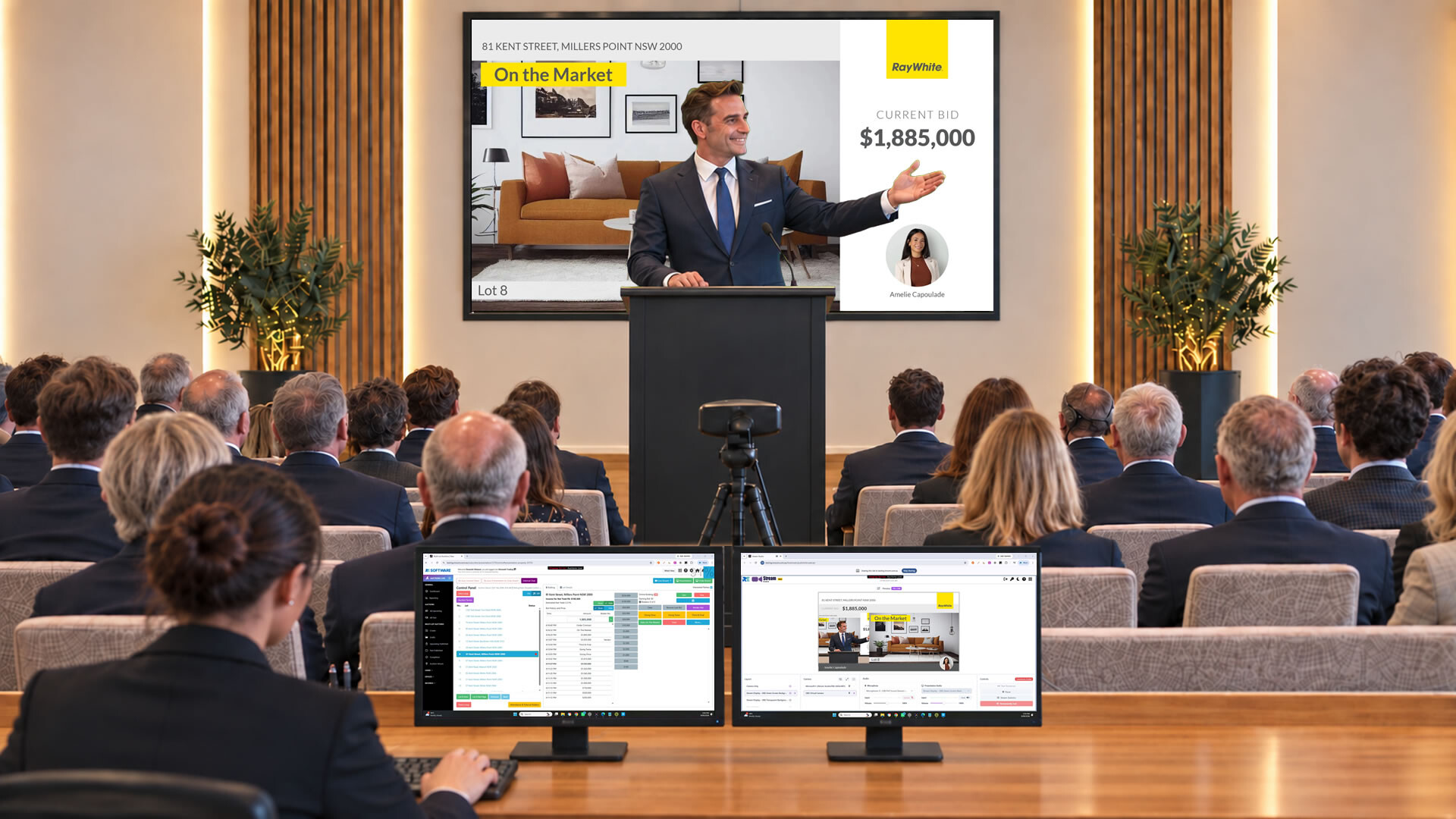
Step 2: Use a second screen where possible so the operator can monitor the presentation and Stream Studio at the same time.
Step 3: If the computer does not have enough processing power to run both applications comfortably, use separate computers for the auction Control Panel/Presentation and Stream Studio.
Step 4: Connect the camera, microphone and other required USB devices before launching Stream Studio.
Prepare the Stream Key
Step 1: If Stream Studio is being operated from a different computer to the auction presentation, make sure the required Stream Key is available to the operator.
Step 2: Use the Stream Studio stream details to access and copy the required Stream Key when needed.
Step 3: Only provide stream details to authorised users who need access to operate the stream.
Complete Your Final Pre-Stream Check
☐ Confirm the auction is a supported multi-lot/in-room auction.
☐ Confirm Auctions Live Stream Pro is enabled and the client's YouTube channel is ready.
☐ Confirm the correct auction presentation and required stream layout are configured.
☐ Confirm the camera and microphone are connected and available.
☐ Confirm browser permissions are allowed and the devices are not being used by another application.
☐ Confirm a second screen is available where recommended, or that separate computers are being used if required.
☐ Confirm the Stream Key is available if Stream Studio will be operated from a separate computer.
Once these checks are complete, open Stream Studio and configure your live stream.
Note:
Connect your camera, microphone and other required USB devices before launching Stream Studio to ensure the drivers are loaded correctly. This gives your computer and browser the best opportunity to detect the available devices correctly.
For the best user experience, it is recommended to use two separate monitors. Use one monitor for the Control Panel and the other monitor for Stream Studio. This allows you to manage the auction and monitor the stream without having to switch between windows.
Disclaimer
This guide is provided as general information only. Features and functionality may change over time. If you are unsure, please contact your Auctions Live representative for assistance.
Posted 22nd August, 2026