Auctions Live Broadcaster App
Broadcaster App Training Guide
A visual guide to connecting, broadcasting, pausing, resuming and safely ending an Auctions Live stream.
Prepare the device
Complete these checks before opening the stream.
Connect to the auction
Enter the Stream Key and confirm the auction details to continue.
Enter the Stream Key
Hover over the highlighted areas for guidance.
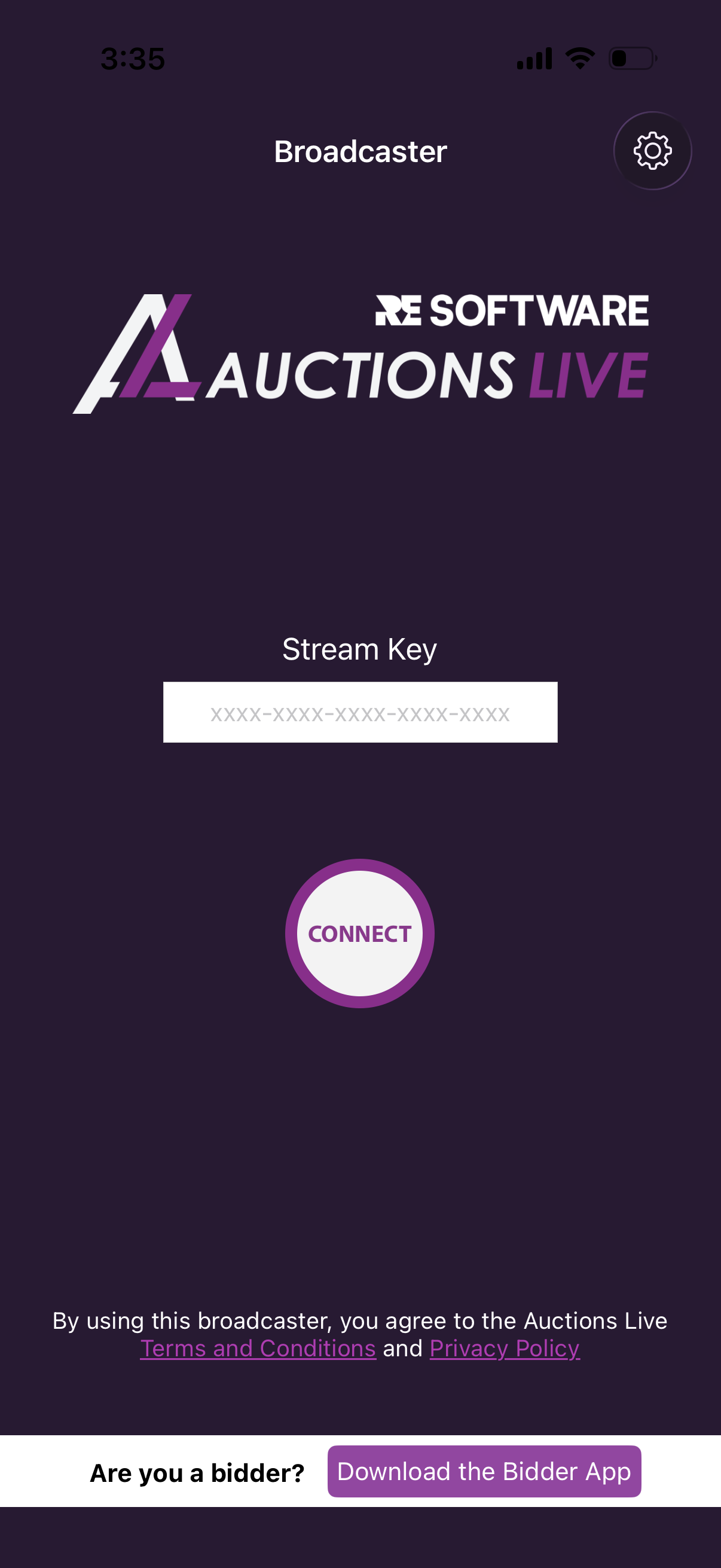 Stream KeyEnter the Stream Key supplied for the auction you are preparing to broadcast. ConnectSelect Connect after the Stream Key has been entered.
Confirm the Auction
Check the auction details before connecting.
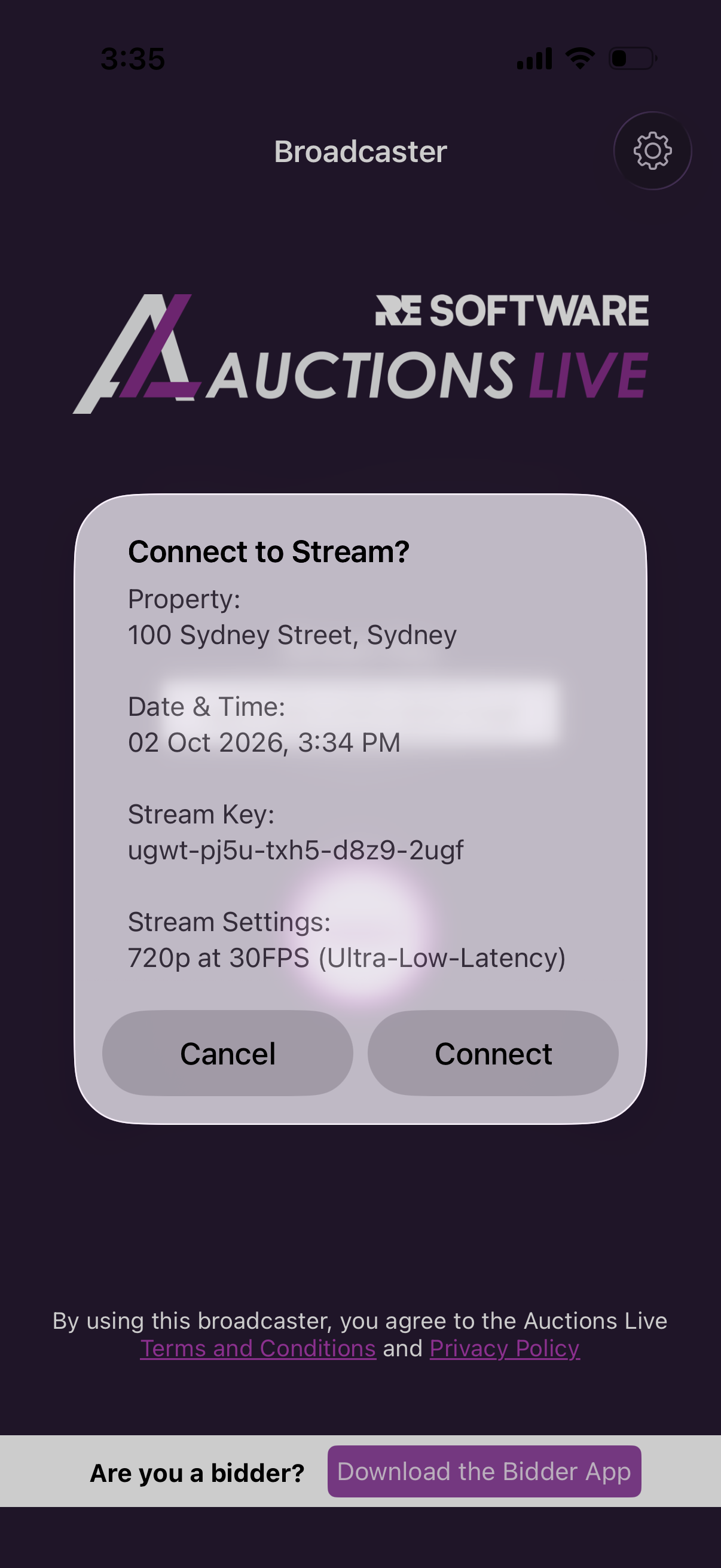 CancelReturn to the previous screen without connecting to this stream. ConnectConfirm the auction details and open the Broadcaster screen.
Broadcaster controls
Hover over any control to see what it does.
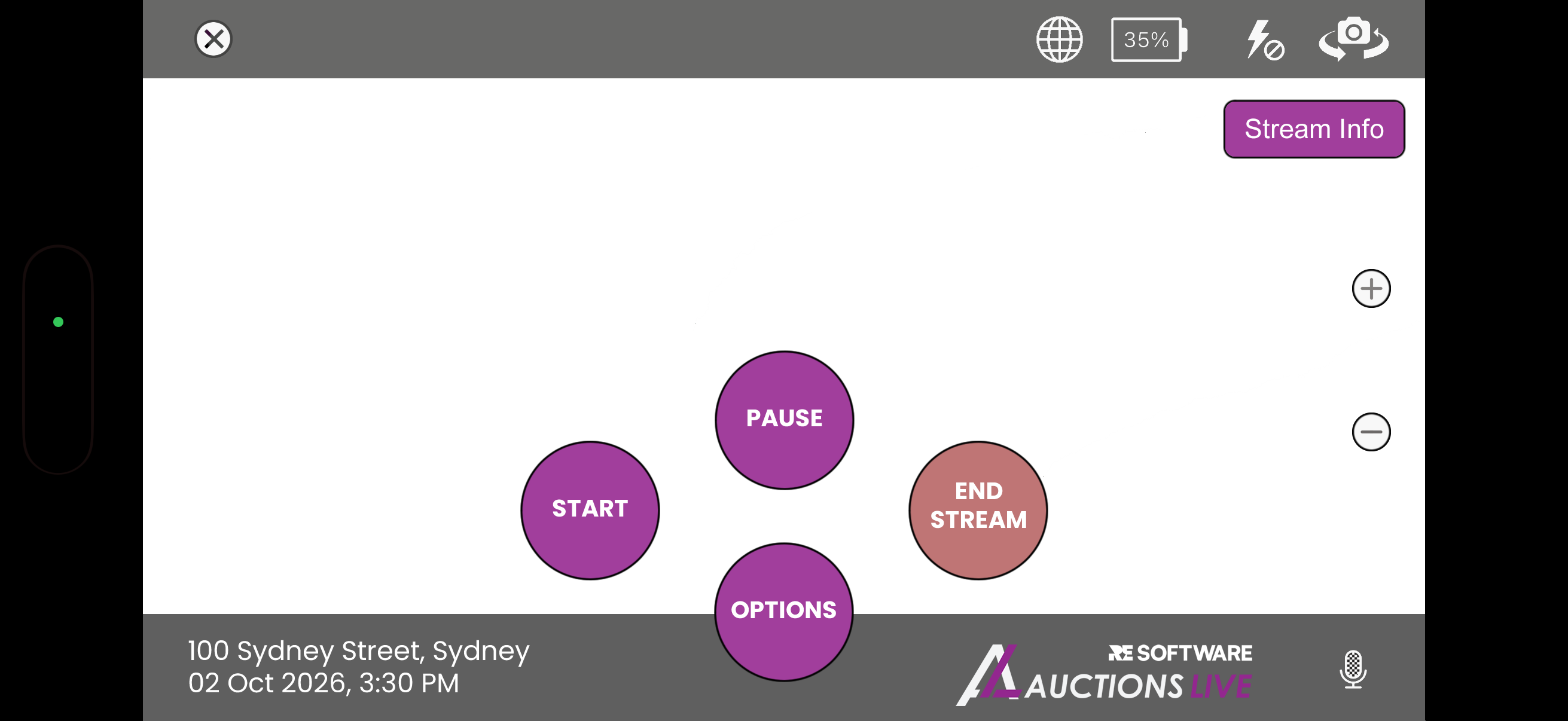 CloseCloses the Broadcaster screen. ConnectivityShows the current network connection status. BatteryDisplays the current device battery percentage. Camera LightTurns the device camera light on or off. Camera SelectorSwitches between the front and rear cameras. Stream InfoDisplays stream health, lifecycle, recording and current stream status. Zoom InZooms the camera view in. You can also pinch on the screen to control zoom. Zoom OutZooms the camera view out. Tap the camera area to refocus when required. StartStarts the live broadcast. Start and Stop can be used again while the streaming session remains open. PauseTemporarily pauses and mutes the live stream. Viewers see the configured pause artwork until you resume. End StreamPermanently ends the livestream after it has been stopped. This cannot be undone. MicrophoneMutes or unmutes the stream audio from the device microphone.
Key stream states
Review the key screens used during a live auction.
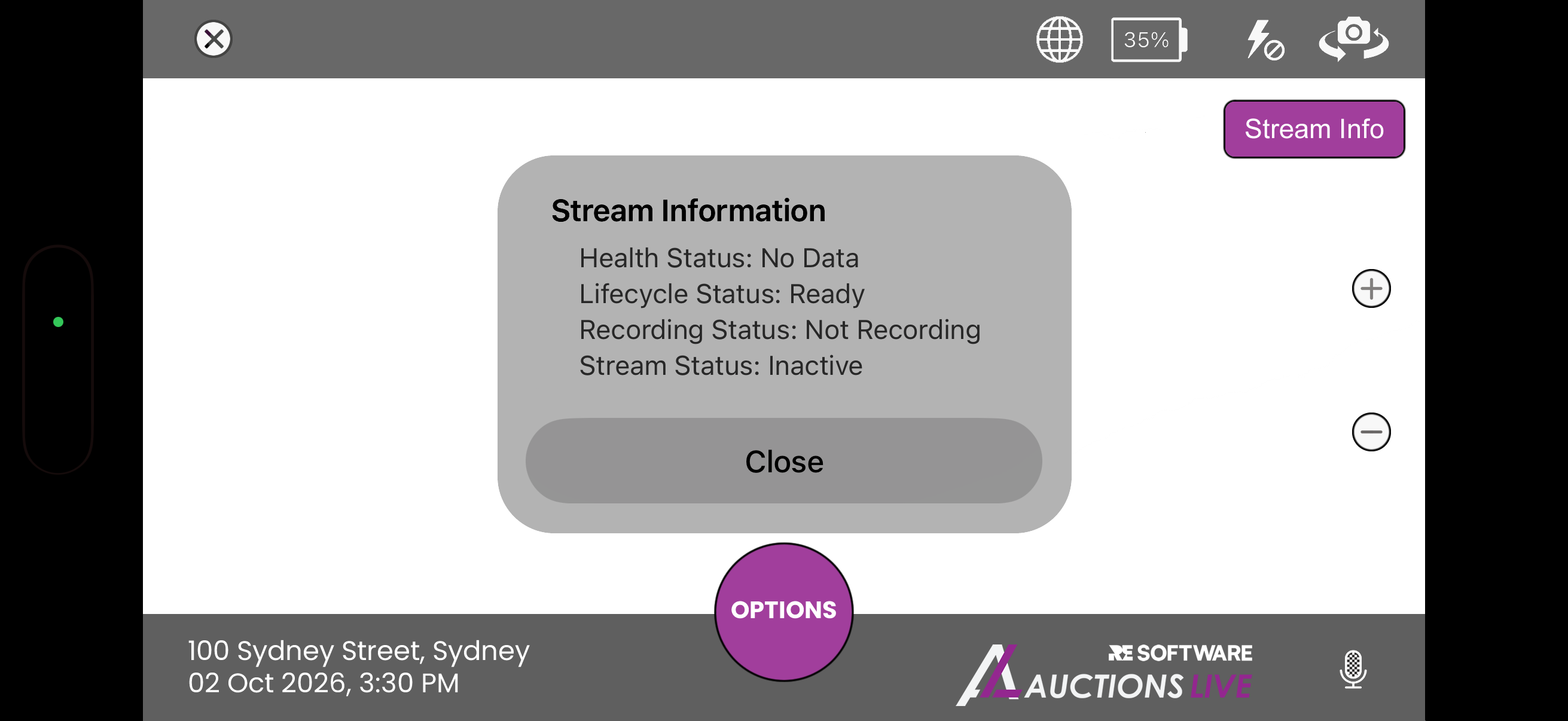 Stream InfoSelect Stream Info to open the status panel shown here. CloseCloses Stream Information and returns to the Broadcaster camera view.
Stream Information
Use Stream Info to check the current health status, lifecycle status, recording status and stream status.
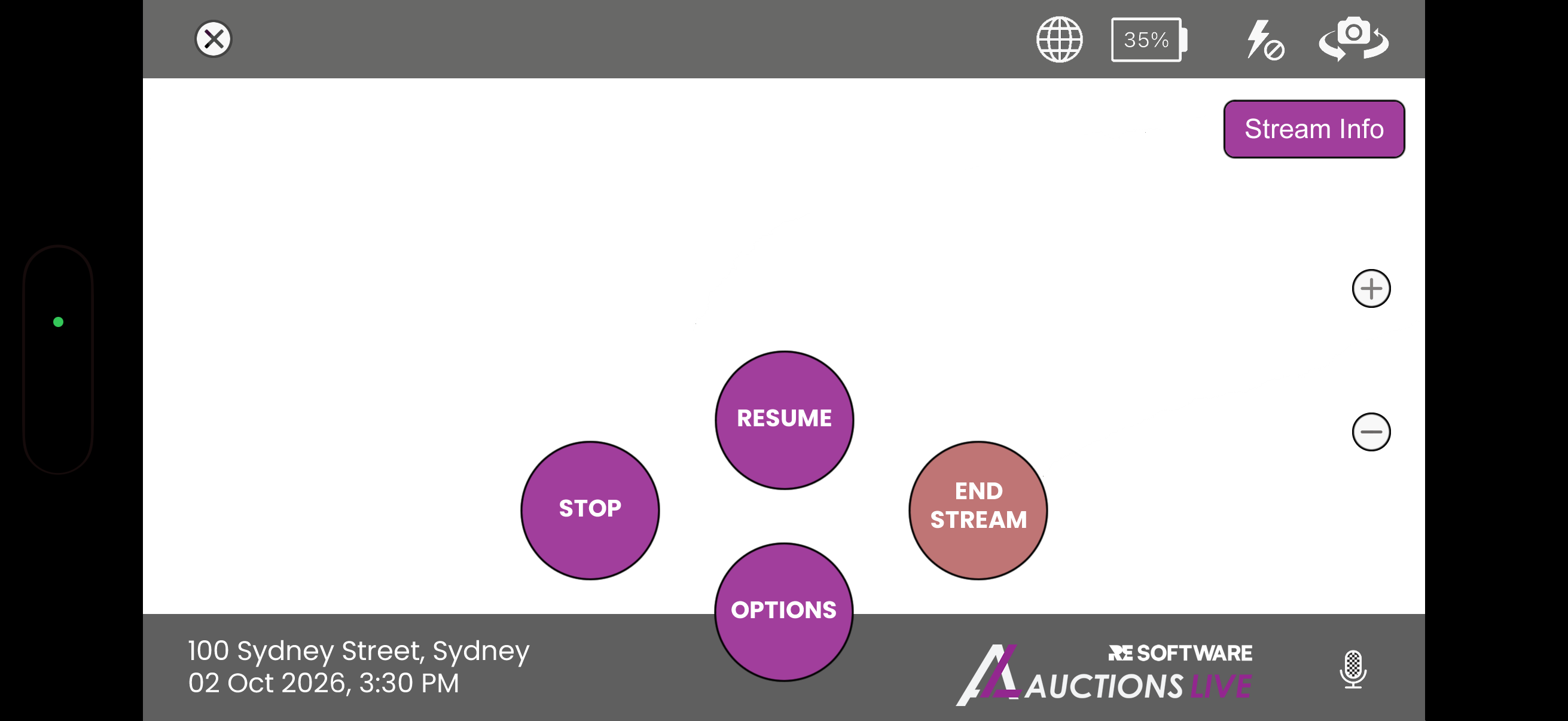 StopStops the current broadcast. This is different from temporarily pausing it. ResumeReturns viewers to the live camera after the stream has been paused. End StreamPermanently ends the livestream once the stream has been stopped.
 Pause & Resume
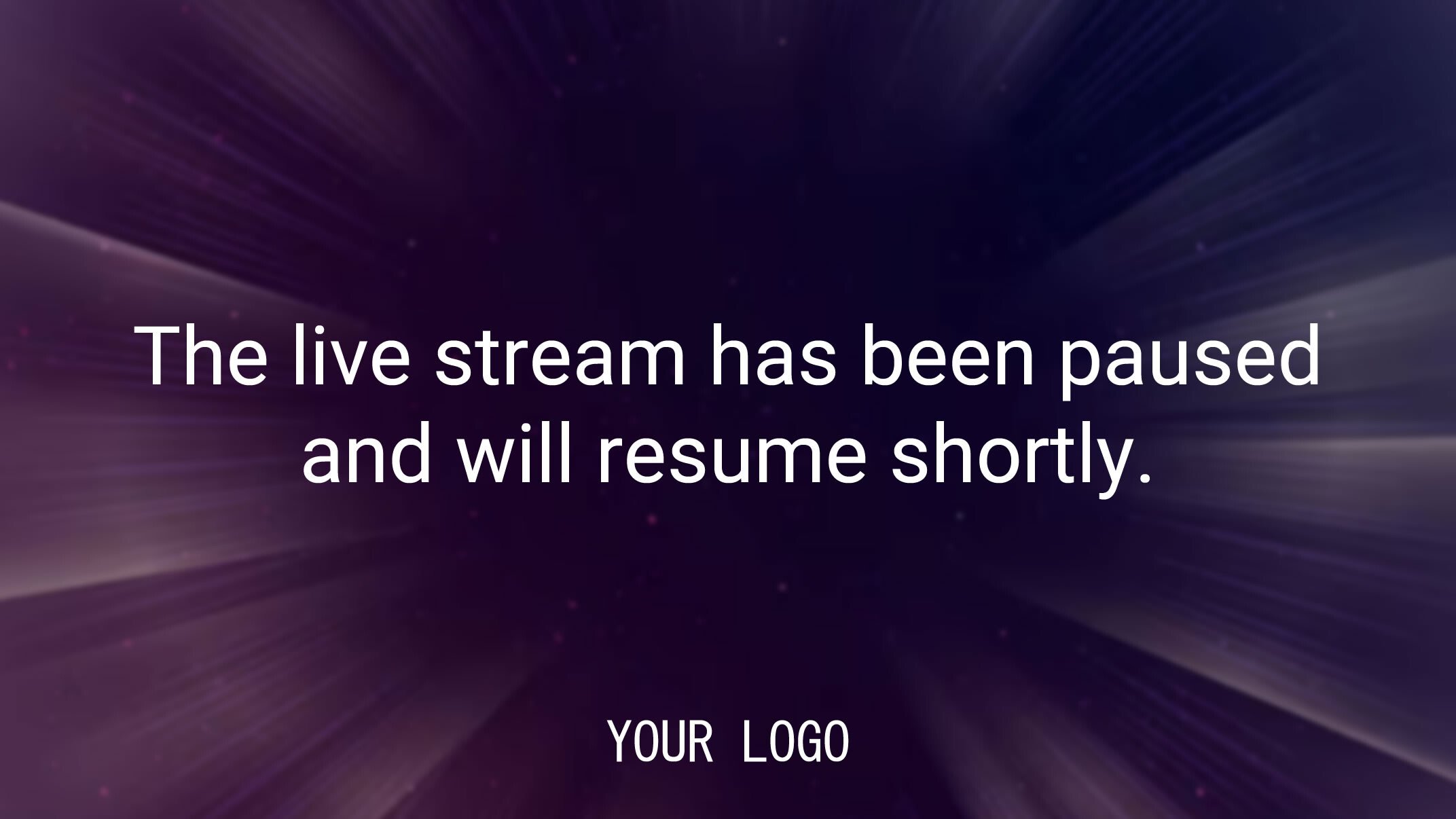
When Pause is selected, the control changes to Resume. The configured pause artwork is shown to viewers until the live camera resumes.
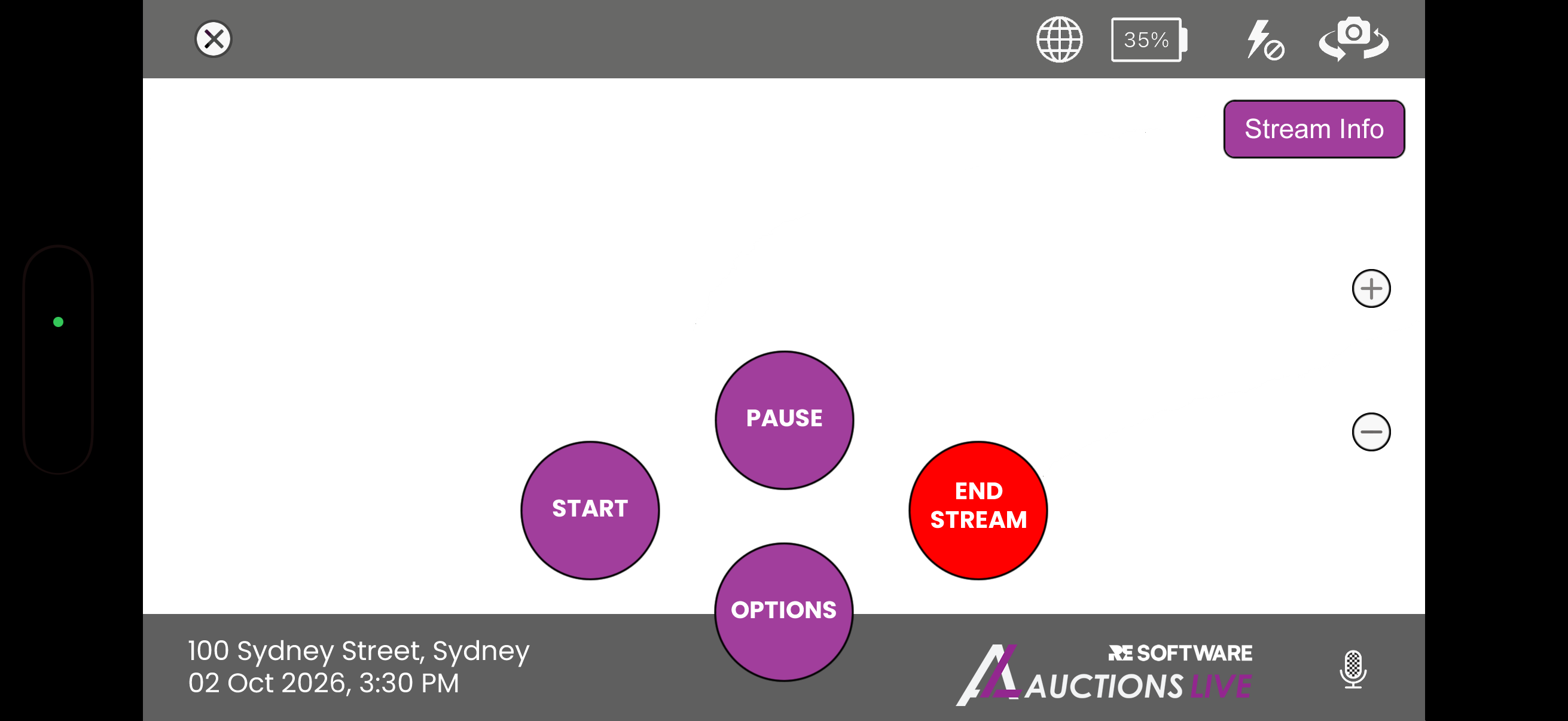 StartStarts the broadcast again while the same streaming session remains open. PausePause is available again if the broadcast is restarted. End StreamPermanently ends the stream. Once selected and confirmed, this action cannot be undone.
 Stop Before Ending
Stop and Start can be used multiple times during the session. The red End Stream action is permanent and should only be used when the auction broadcast is finished.
Record post-auction information
This post-auction step is available for Stream Only auctions only.
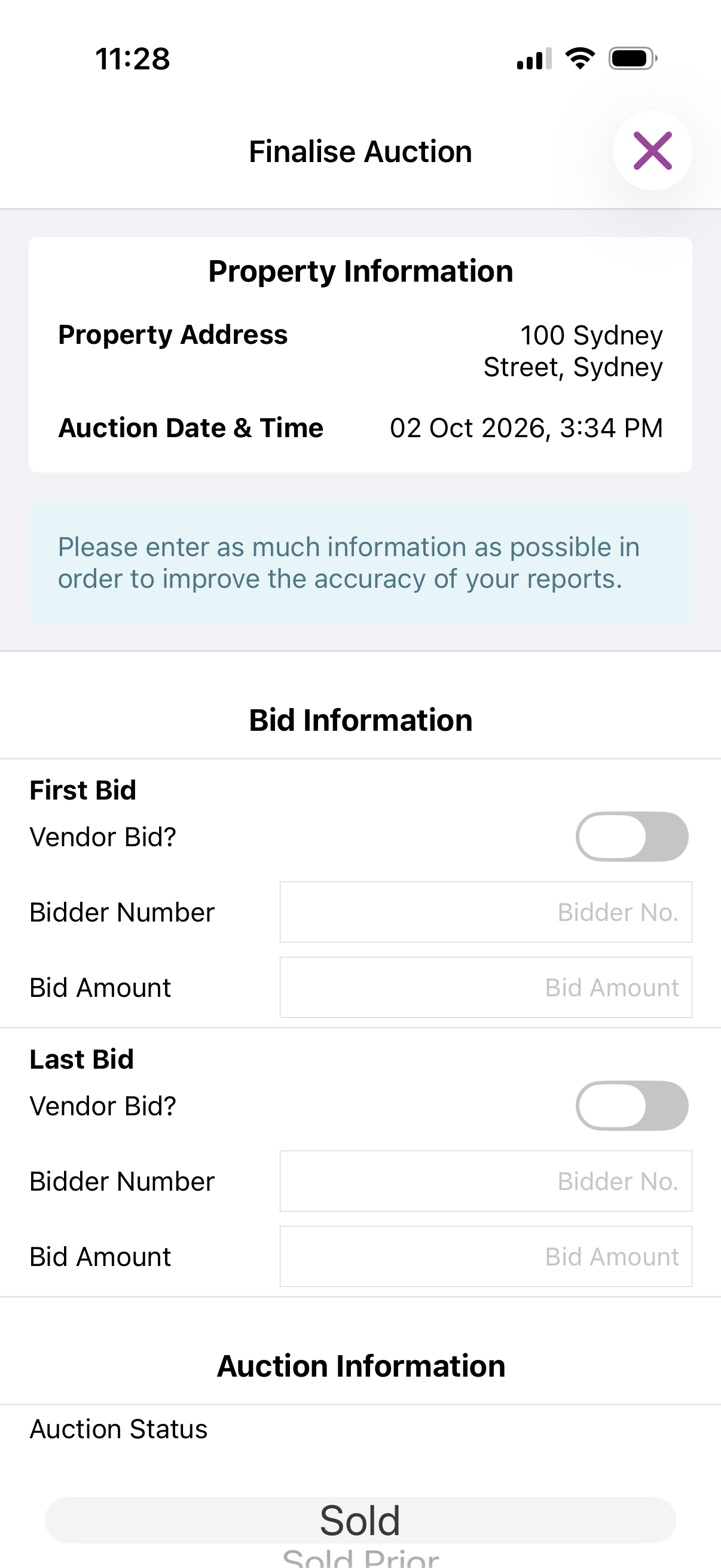
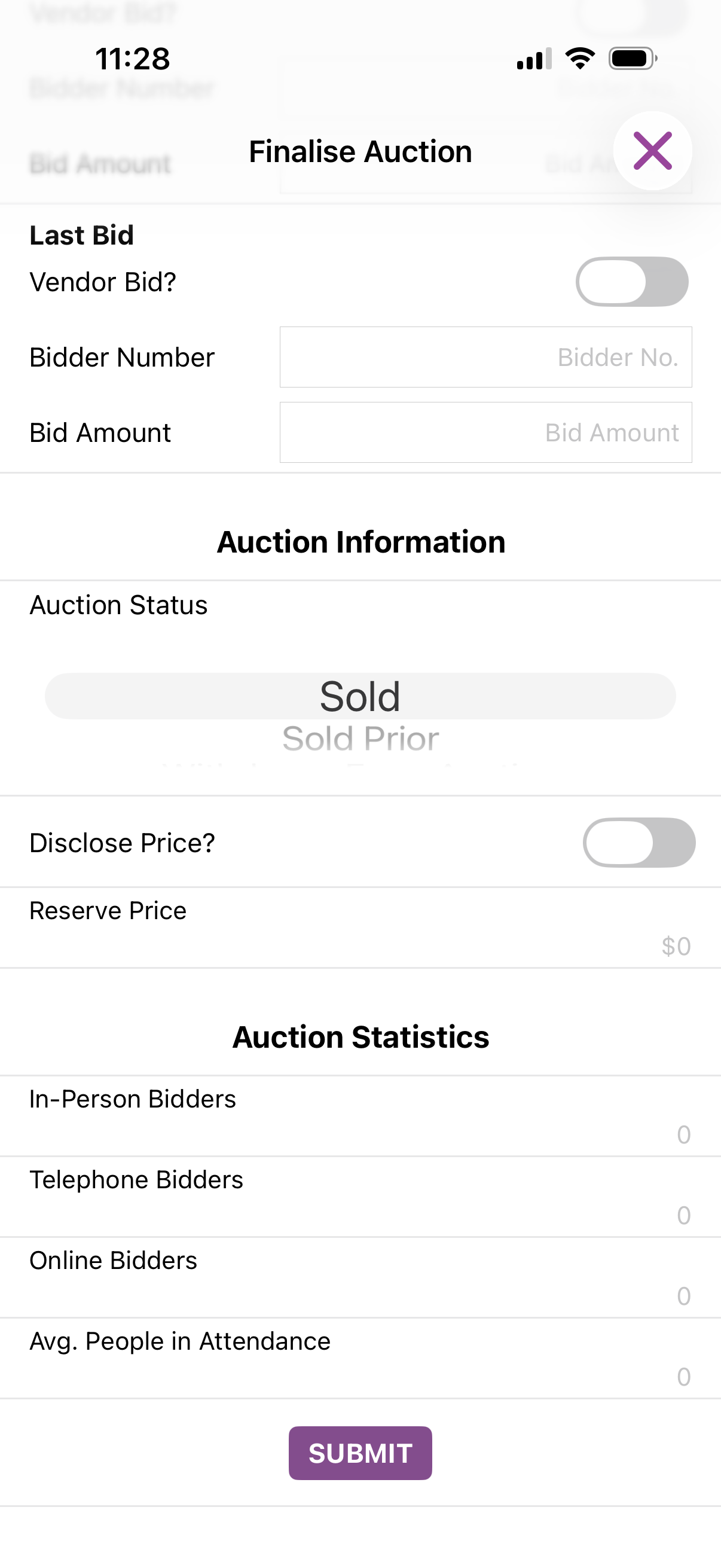
Record the auction information
After the livestream has ended, enter the general auction data for the Stream Only listing.
Complete the post-auction record
Continue through the Stream Only form to record the remaining post-auction information.
Suggested demonstration flow
Use this sequence when demonstrating the Broadcaster App.
Useful Broadcaster resources
Open any resource in a new tab.
Posted 2nd June, 2025