Setting Up an In-Room Auction with Auctions Live
How to Set Up a Multi-Lot / In-Room Auction
A practical guide to the computers, internet, camera, cables and software needed to run an Multi-Lot auction using Auctions Live.
Keep It Simple. Set It Up. Test It. Then Auction.
An in-room auction setup does not need to be complicated. You need the right computers, a reliable internet connection, a presentation screen and, if you are live streaming, a camera and audio source.
Set the room up early and test everything prior to the auction commencing.
Use three laptops where possible, or two laptops for a simpler setup.
Set up the screen, internet, camera, power and any required audio.
Check the event, presentation, bidder registrations and streaming software.
Complete a final room check before the auction is due to begin.
Choose Your Computer Setup
Where possible, we recommend giving the three main auction jobs their own computer: presentation, scribing and live streaming.
Three-Laptop Setup
This is the cleanest setup because each laptop has one main job. An issue on one computer is also less likely to affect the rest of the auction.
Two-Laptop Setup
The first laptop handles both scribing and the presentation, while the second laptop is kept separate for live streaming.
Using One Laptop for Scribing and Presentation?
If you are using the two-laptop setup, set the scribing / presentation laptop to extend its display. This allows the Auctions Live presentation to appear on the venue screen while you continue to scribe and control the auction from the laptop screen.
Recommended Three-Laptop Room Setup
Separate computers are used for presentation, scribing and live streaming.
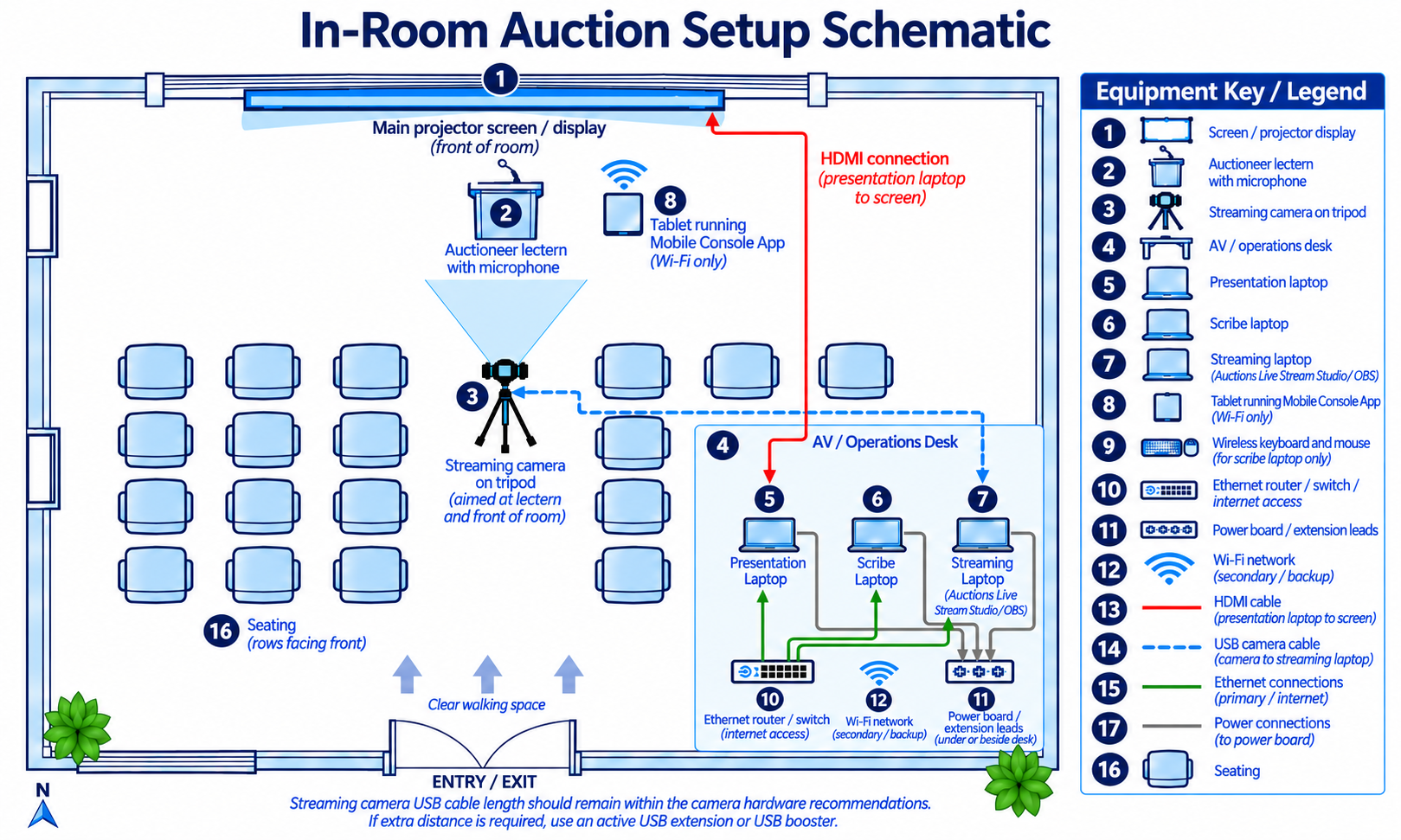
Select the image to open a larger version.
View Full-Size SchematicAlternative Two-Laptop Room Setup
The scribing laptop also controls the presentation, with a separate computer dedicated to streaming.
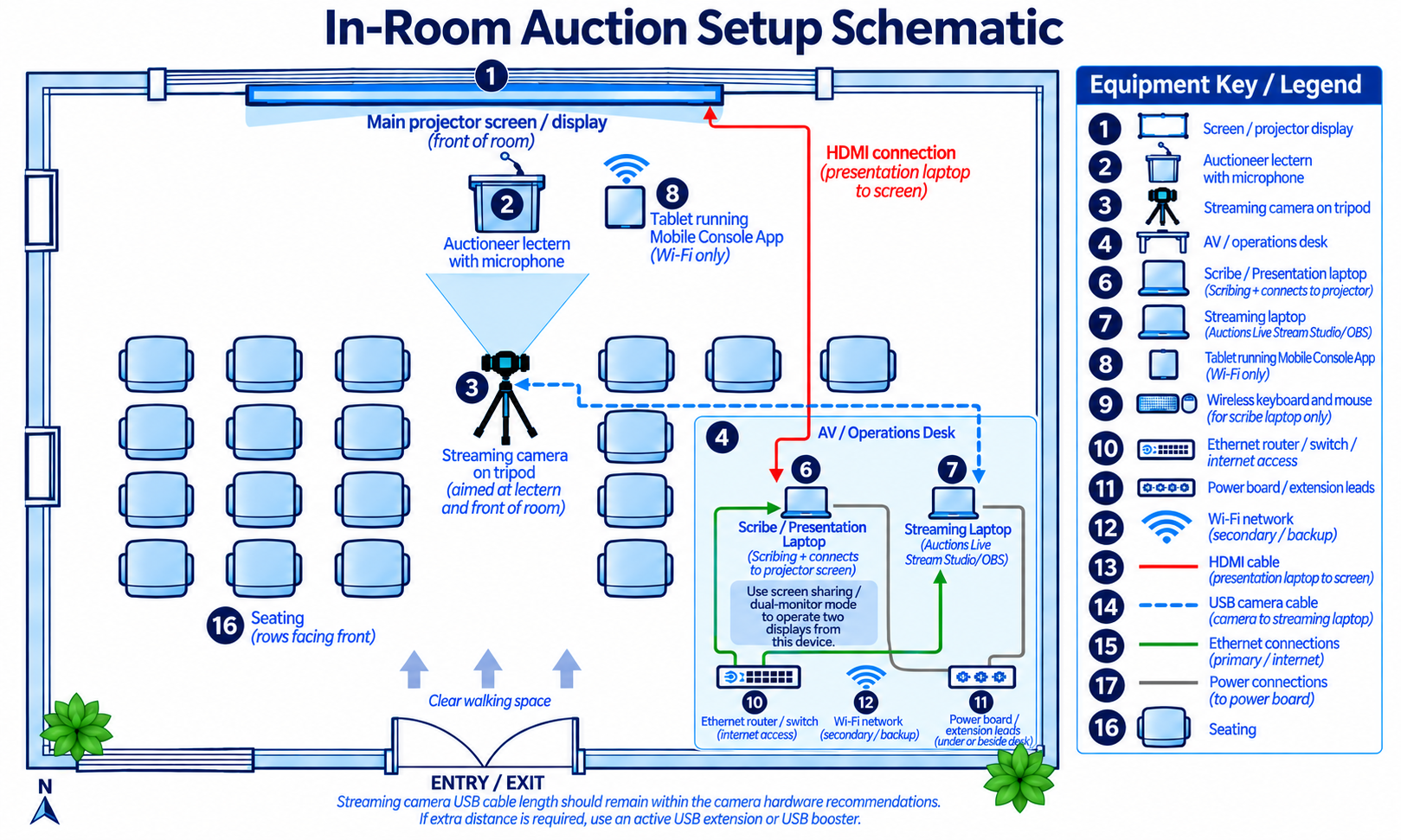
Select the image to open a larger version.
View Full-Size SchematicWhat You Need to Bring
You do not need a huge amount of equipment, but the small items matter. Pack your cables, adaptors and spare equipment before leaving for the venue.
Laptops
- Two or three laptops
- Charger for every laptop
- Optional spare laptop
- Wireless keyboard and mouse if required
Streaming Camera
- Good-quality 1080p webcam
- Stable tripod
- Webcam USB cable
- Suitable microphone or audio feed
Presentation
- HDMI cable
- Spare HDMI cable
- USB-C to HDMI adaptor if required
- Correct adaptor for the venue screen
Internet
- Ethernet cable
- Spare Ethernet cable
- USB-C to Ethernet adaptor if required
- 4G or 5G backup connection
Power
- Power boards
- Extension leads
- Laptop chargers
- Spare charging cables
Cable Safety
- Gaffer tape or floor tape
- Velcro cable ties
- Cable covers where required
- Keep walkways clear
Connect the Room in This Order
Working through the room in the same order each time makes setup easier and reduces the chance of forgetting something.
Connect the Presentation Screen
Connect the presentation laptop to the venue television, projector, LED wall or display system using HDMI or the required adaptor.
Set Up the Streaming Camera
Place the camera on a tripod with a clear view of the auctioneer. Connect it by USB to the streaming laptop.
Connect the Internet
Connect each Auctions Live device to the internet. Where available, use Ethernet for the streaming laptop.
Set Up the Mobile Console Tablet
If using the Auctions Live Mobile Console App, position the tablet near the auctioneer and connect it using Wi-Fi.
Connect Power and Secure the Cables
Keep laptops connected to power throughout the event and make sure cables do not run loose across areas used by bidders or staff.
Recommended Laptop Specifications
These are recommended configurations rather than strict minimum requirements. Modern and reliable computers will generally provide the best auction experience.
Everyday Auction Laptop
- Intel Core i5, AMD Ryzen 5, Apple Silicon or better
- 8 GB RAM minimum
- 16 GB RAM recommended
- SSD storage
- Current Windows or macOS version
- Current Google Chrome or Microsoft Edge
- HDMI output or suitable display adaptor
Higher-Performance Laptop
- Intel Core i7, AMD Ryzen 7, Apple Silicon or equivalent
- 16 GB RAM or greater
- SSD storage
- USB 3.0 or USB-C
- Gigabit Ethernet capability
- Capable of comfortably running a 1080p live stream
Software to Check Before the Auction
Log in and test everything at the office, then check it again after the equipment has been connected at the venue.
Before bidder registration opens, make sure:
The aim is simple - no surprises once the auction starts.
Stop the Computer from Interrupting the Auction
A software update, notification or sleep setting should never be the reason your presentation or live stream stops during an auction.
Turn Off Interruptions
Check the Basics
Recommended Display Settings
The aim is simple - no surprises once the auction starts.
Before the auction begins, we recommend confirming that all devices are set to 100% display scaling/zoom. This should be checked at both the device operating system level and within the web browser being used.
For your Windows browser, you can quickly adjust the zoom using:
Setting everything to 100% helps ensure the Auctions Live interface, Digital In-Room Presentation and scribing screens display consistently and reduces the risk of buttons, information or page elements appearing incorrectly during the auction.
Test the Actual Auction Room
A setup that worked perfectly at another venue may behave differently here. Testing the actual room is one of the most important parts of preparing for the event.
What the Complete Setup Can Look Like
This 3D room view shows how the auctioneer, camera, seating, operations desk, presentation screen and equipment can work together within a typical in-room auction environment.
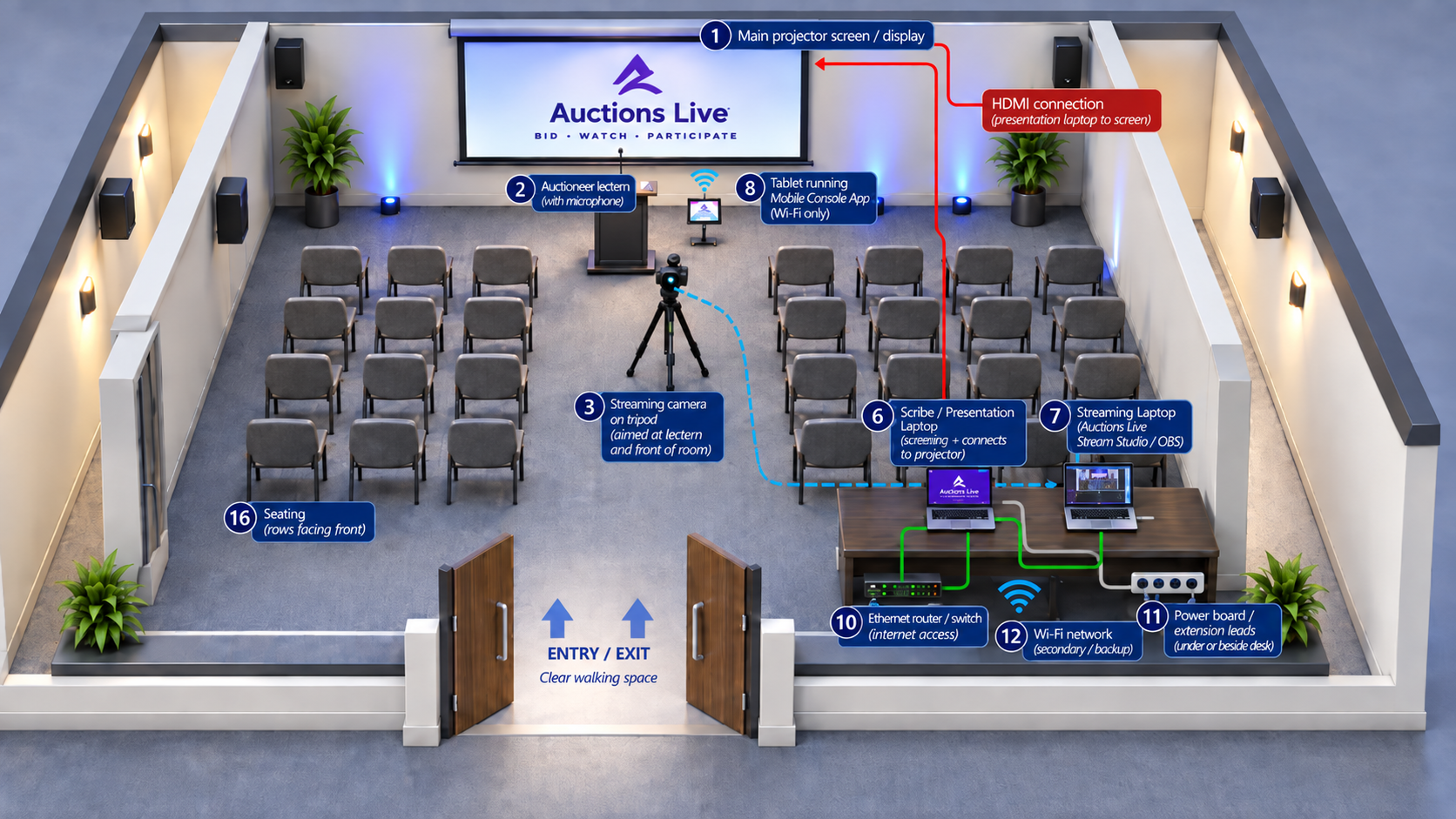
Example layout only. The exact room setup will depend on the venue.
View Full-Size 3D Layout ↗Auctions Live In-Room Auction Checklist
Use this checklist before leaving the office and again after setting up at the venue.
Final Auction Room Checklist
Tick each item while you prepare or print a clean copy and keep it with your auction equipment.
Posted 16th September, 2026